Teltonika Router Auto-Reboot and Resilience Features: The Complete Guide
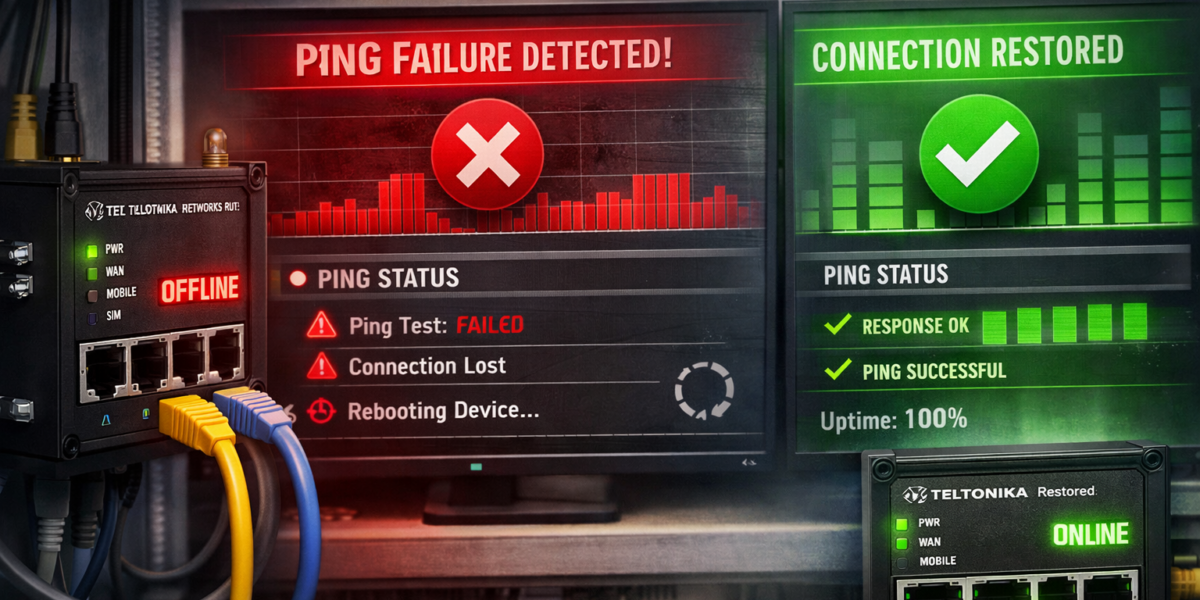
Teltonika routers are among the most widely deployed industrial cellular routers in the UK and across Europe. A major reason for that reputation is the resilience tooling built into RutOS – the Linux-based operating system running on Teltonika Networks devices – designed specifically to keep remote, unattended routers online without human intervention.
These features go well beyond simple ping reboot. RutOS includes a layered set of watchdog, reboot, reconnection, and recovery mechanisms that address different types of failure. Understanding what each one does, when to use it, and how to configure it correctly is essential if you want stable, long-term IoT deployments.
This guide covers the auto-reboot and resilience features available in current RutOS firmware (RUT2xx, RUT3xx, RUT9xx, RUTX, and RUTM families), explains when and why to use each one, and highlights configuration mistakes that commonly cause problems in production.
The Resilience Toolkit: What’s Available
Teltonika’s resilience features are found primarily under System > Maintenance > Auto Reboot, Services > Mobile Utilities, and Network > Mobile in the RutOS web interface (paths based on RutOS 7.x). Here’s the full set:
- Ping Reboot – ICMP-based connectivity watchdog
- Wget Reboot – HTTP-based connectivity watchdog (deeper check than ping)
- Reboot Scheduler – Periodic time-based reboot (daily, weekly, etc.)
- SMS Utilities (including SMS reboot) – Remote commands triggered by SMS message
- Call Utilities – Remote reboot triggered by phone call
- Hardware Watchdog – Internal hardware/software process monitor
- Mobile Data Connection Monitoring – Signal and connection state monitoring
- Low Signal Reconnect – Automatic reconnection based on signal thresholds (model dependent)
Each addresses a different failure scenario, and mature deployments layer several together rather than relying on one mechanism alone.
Ping Reboot
Ping reboot is the foundation of Teltonika’s connectivity monitoring. It periodically sends an ICMP ping to a specified IP address and, if it fails to get a response after a configured number of attempts, takes corrective action.
How It Works
The router sends an ICMP echo request (ping) to a target IP address at a defined interval – for example, every 5 minutes. If the ping succeeds, the router knows its data connection is active and passing traffic. If the ping fails, the router retries a configured number of times. If all retries fail, the router executes the configured action.
Key Configuration Options
Host to ping – The IP address or hostname the router will ping. The factory default is typically 8.8.8.8 (Google DNS). For private APN deployments without internet access, this must be changed to an IP within the private network – see our separate guide on ping reboot with private IP SIMs for details on this critical consideration.
Ping interval – How often the router sends a ping. Common settings range from 1 minute (aggressive) to 15 minutes (conservative). 5 minutes is a sensible default for most deployments.
Ping timeout – How long the router waits for a response before counting the ping as failed. The default is usually a few seconds. Increasing this can help on high-latency connections.
Retry count – How many consecutive failed pings are required before the action is triggered. Setting this too low (1-2) risks unnecessary reboots from transient network blips. Setting it too high (20+) means the router sits offline for a long time before self-correcting. A retry count of 3-5 is typical.
Action – What the router does when the threshold is reached. Options include:
- Restart mobile connection – Drops and re-establishes the cellular data session without rebooting the entire router. Faster and less disruptive than a full reboot, and often sufficient to resolve a stalled connection. This is the preferred first-level recovery action on all current RutOS cellular models.
- Reboot – Full device restart. Effective but takes the router offline for the duration of the reboot cycle (typically 45-70 seconds on RUT2xx models, 60-120 seconds on RUTX and 5G models due to longer modem initialisation).
- Restart interface – Restarts a specific network interface.
Interface to monitor – Which network interface the ping should be sent through. This is critical on dual-WAN models (e.g., RUTX50, RUTX11, RUTM series) to ensure you’re testing the correct connection.
Multiple Ping Rules
Teltonika allows up to 30 combined ping and wget reboot rules (they share the same rule pool). This is useful for monitoring multiple interfaces or using different ping targets as cross-checks. For example, you might configure one rule to ping your gateway IP every 5 minutes with the action set to restart mobile connection, and a second rule to ping a different target every 15 minutes with the action set to full reboot as a fallback. If the first target goes down for maintenance, the second prevents an unnecessary reboot. This layered approach avoids unnecessary full reboots while still catching genuine failures.
When to Use Ping Reboot
Every deployment. There is virtually no scenario where an unattended cellular router should not have ping reboot enabled. It is the single most important resilience feature on the device.
The only caveat is choosing the right ping target – which, as covered in our private IP SIM guide, is critical for closed-network deployments.
Wget Reboot
Wget reboot works on the same principle as ping reboot but uses an HTTP request instead of ICMP. Instead of just checking whether the network path is alive (which is what ping does), wget reboot tests whether the device can successfully complete a full HTTP transaction – including DNS resolution, TCP connection, and HTTP response.
Why Wget Is a Deeper Check Than Ping
A ping test only proves that ICMP packets can travel to a destination and back. It’s possible for a connection to be in a degraded state where ping works but actual application traffic (HTTP, HTTPS, VPN) does not. Common causes include DNS failures (the device can ping an IP but can’t resolve hostnames), transparent proxy issues on the operator’s network, partial connectivity where ICMP is prioritised but TCP sessions are dropped, and firewall or NAT state table exhaustion.
Wget catches all of these because it performs a complete HTTP request, which exercises the full network stack including DNS, TCP, and HTTP.
Common scenarios where ping succeeds but wget fails include DNS server unreachable or misconfigured, operator firewall or transparent proxy blocking TCP but passing ICMP, partial PDP session failure where the data bearer is degraded, and NAT state table exhaustion on the operator’s infrastructure.
Key Configuration Options
URL to check – The URL the router will attempt to fetch. This should be a lightweight, highly available URL that returns a small response. Best practice is to host a minimal test page on your own infrastructure for predictable behaviour. Avoid URLs that return large pages, as this wastes data on metered SIM connections.
Interval, retries, and action – Configured the same way as ping reboot.
When to Use Wget Reboot
Use wget reboot alongside ping reboot, not instead of it. Ping provides a fast, lightweight connectivity check. Wget provides a deeper application-layer check at a less frequent interval. A typical configuration might be ping every 5 minutes with wget every 30-60 minutes.
Wget reboot is particularly valuable on connections where you’ve experienced “ghost connectivity” – the router reports it’s connected and ping works, but actual applications can’t reach their destinations.
Important note for private APN deployments: Wget reboot requires the target URL to be reachable. On a private APN with no internet breakout, public URLs like google.com are not accessible. You’ll need to either point wget at a web server on your private network or skip wget and rely on ping reboot with a valid private network IP.
Reboot Scheduler (Periodic Reboot / Daily Reboot)
The reboot scheduler automatically reboots the router at a defined time, regardless of whether there’s any problem. Think of it as a preventative maintenance reboot.
Why Schedule Regular Reboots?
Cellular routers, like any embedded device running Linux, can accumulate issues over time – memory leaks, stale network sessions, process table bloat, orphaned connections. A clean reboot clears all of this. For routers deployed in the field for months or years without physical access, a scheduled daily or weekly reboot acts as a regular “clean start” that prevents the gradual accumulation of minor issues from eventually causing a failure.
This is standard practice in professional IoT deployments. Many operators schedule a reboot during a low-traffic window (e.g., 3:00 AM) so the brief downtime has minimal operational impact. Typical reboot times vary by model: RUT2xx devices restart in around 45-70 seconds, while RUTX and 5G models (such as the RUTX50) can take 60-120 seconds due to longer modem initialisation sequences.
Key Configuration Options
Time – When the reboot occurs. Choose a time when the connection is least critical.
Days – Which days of the week. Daily is common for always-on critical deployments. Weekly (e.g., Sunday at 3 AM) may be sufficient for less critical installations.
Multiple schedules – You can create up to 30 scheduled reboot rules, though one is typically sufficient.
When to Use Scheduled Reboots
Almost always. It’s cheap insurance. The 60-90 seconds of downtime during a scheduled reboot is far preferable to an unplanned outage that could last hours or days until someone notices and arranges a site visit.
The exception might be applications that genuinely cannot tolerate any planned downtime – but even then, the alternative (an unplanned, longer outage) is usually worse.
Combining with Ping Reboot
Scheduled reboot and ping reboot serve different purposes and should be used together. Ping reboot handles reactive recovery – something has gone wrong, fix it now. Scheduled reboot handles preventative maintenance – clear out accumulated issues before they cause a problem. They complement each other perfectly.
SMS Reboot
SMS reboot allows you to remotely reboot the router by sending an SMS message to the SIM card’s phone number. This is a manual, on-demand recovery option – your last line of defence when automated mechanisms have failed or when you need to force a reboot for other reasons.
How It Works
You send an SMS message containing a specific keyword (typically “reboot”, though the default can vary by firmware version – always confirm in the SMS Utilities configuration page) to the phone number of the SIM card in the router. The router receives the SMS, validates it against the configured authorisation rules, and if everything checks out, executes the reboot.
Authorisation Methods
Teltonika takes SMS security seriously and provides multiple authorisation options to prevent unauthorised reboot commands:
No authorisation – Any SMS containing the keyword triggers the action. Simple but insecure – anyone who knows the phone number can reboot your router. Not recommended for production deployments.
By device admin password – The SMS must contain the router’s admin password followed by the keyword. Example: “MyPassword123 reboot”. The router validates the password before executing.
By serial number – The SMS must contain the router’s serial number followed by the keyword. This is useful for fleet management where each router has a unique identifier.
By custom password – A dedicated password configured specifically for SMS commands, separate from the admin password. Useful when you want to delegate SMS reboot capability without sharing the admin credentials.
Allowed Numbers
You can restrict which phone numbers are permitted to send SMS commands. This adds another layer of security – even if someone knows the password, the command will be rejected unless it comes from an authorised number.
Status Response
The router can be configured to send an SMS response after executing the reboot, confirming the action was taken. It can also forward this confirmation to additional phone numbers – useful for alerting a team that a manual reboot has been performed.
Additional SMS Commands Beyond Reboot
SMS utilities in RutOS go well beyond simple reboot. Depending on the model, available SMS commands include:
- Status request – Get the router’s current connection status, signal strength, uptime, and IP address via SMS reply
- SSH enable/disable – Remotely turn SSH access on or off
- VPN enable/disable – Start or stop VPN connections
- Change mobile settings – Remotely change APN, network mode, or other mobile parameters via SMS
- IO status – Read the state of the router’s digital input/output pins (on models with I/O)
- Custom rules – Define your own SMS commands mapped to specific actions
- UCI commands – Execute router configuration commands via SMS (advanced)
- API access – Create, read, update, or delete configurations via SMS-triggered API calls (newer RutOS 7.x firmware)
The SIM Card SMS Requirement
Here’s the critical dependency: SMS reboot only works if the SIM card supports SMS.
This might seem obvious, but it’s a genuine gotcha in IoT deployments. Many IoT/M2M SIM cards are data-only and do not include SMS capability. If your SIM plan doesn’t include SMS, the router cannot receive SMS messages, and all SMS-based features – reboot, status, VPN control, everything – are unavailable.
Before relying on SMS reboot as part of your resilience strategy, confirm with your SIM provider that SMS is included in your plan and that inbound SMS is enabled. Some providers offer SMS as a separate add-on, others include it by default, and some data-only plans deliberately exclude it.
For deployments on private APNs, there’s a particular consideration: even if the SIM supports SMS, the SMS service may need to be explicitly enabled on the private APN configuration. Standard data-only private APNs don’t always carry SMS by default – check with your provider.
When to Use SMS Reboot
SMS reboot is your emergency backup – the “break glass” option when everything else has failed. If ping reboot hasn’t recovered the connection and the scheduled reboot hasn’t happened yet (or hasn’t helped), sending an SMS to force a reboot gives you a recovery path without sending an engineer to site.
It’s also useful for ad-hoc maintenance – for example, after pushing a configuration change remotely, you might SMS reboot the device to ensure the new config takes effect cleanly.
Call Reboot
Call reboot is a simpler variant of SMS reboot: the router reboots when it receives a phone call from an authorised number. You don’t need to type a message – just call the SIM card number and the router reboots.
How It Works
The router’s SIM receives an incoming call. If the calling number matches the authorised list, the router answers and executes the configured action (typically reboot). The call doesn’t need to be answered by a human – the router handles it automatically.
When to Use Call Reboot
Call reboot is useful in situations where SMS might not be practical – for example, rebooting a router quickly from a mobile phone without typing a message and password. It’s a convenience feature more than a security-critical one.
The same SIM requirements apply: the SIM must support voice/incoming calls, which not all IoT SIMs do. Data-only SIMs will not support call reboot.
Watchdog (Hardware/Software Watchdog)
The watchdog is a different type of resilience mechanism. While ping reboot monitors the external network connection, the watchdog monitors the router’s internal processes – its own software and hardware health.
How It Works
The watchdog is a timer that expects to be “fed” (reset) at regular intervals by the router’s running processes. If the system freezes, crashes, or becomes unresponsive and the timer isn’t reset, the watchdog triggers a hardware-level reboot.
This catches failures that ping reboot cannot detect – for example, a kernel panic, a firmware crash, a process hang that freezes the entire system, or a runaway process consuming all available memory. In these scenarios, the router may be completely unresponsive – it can’t send pings because its own software has stopped functioning. The watchdog operates at a lower level and can force a hardware reset even when the software is completely locked up.
When to Use the Watchdog
The watchdog should be enabled on every deployment. It’s a safety net for catastrophic internal failures that no amount of ping reboot configuration can address. There’s no practical downside to having it active.
Mobile Data Connection Monitoring
Beyond the auto-reboot features, Teltonika routers include mobile-specific connection monitoring that can detect and respond to cellular connectivity issues.
Low Signal Reconnect
Available on most LTE and 5G models (availability depends on the specific modem fitted), this feature monitors the cellular signal strength (RSSI/RSRP) and automatically re-establishes the mobile data connection if the signal drops below a configured threshold for a defined period. This is useful in deployments where signal quality fluctuates – the router can proactively drop and reconnect the data session to force a cleaner attachment to the network, potentially connecting to a different cell tower with better signal.
Operator Locking and Blacklisting
While not strictly a reboot feature, operator management contributes to resilience. You can lock the router to a specific operator, whitelist preferred operators, or blacklist problematic ones. This prevents the router from attaching to a network with poor performance in your area when better options are available. On multi-network SIMs, this can be combined with the SIM’s own network selection logic.
Data and SMS Limits
RutOS allows you to set data usage caps and SMS limits per SIM. While these are primarily cost-control features, they also serve a resilience function – a misconfigured device or compromised system consuming unexpected amounts of data can be automatically throttled before it racks up a massive bill.
Putting It All Together: Recommended Configuration
For a typical Teltonika router deployed on a cellular connection at a remote site, here’s a recommended resilience configuration:
Layer 1: Ping Reboot (Reactive – Connection Monitoring)
Enable ping reboot with a reliable target IP. For standard internet-connected SIMs, use 8.8.8.8 as the primary target. For private APN SIMs, use an IP address provided by your SIM provider that sits within the private network. Set the interval to 5 minutes with 3 retries before action. Set the action to “Restart mobile connection” first – this is faster and less disruptive than a full reboot. Consider adding a second ping rule with a different target and a “Reboot” action as a fallback if the connection restart doesn’t resolve the issue.
Layer 2: Wget Reboot (Reactive – Application-Layer Check)
If your deployment has internet access, add a wget reboot rule targeting a lightweight URL. Set the interval to 30-60 minutes with 2-3 retries. Set the action to “Reboot” (since if wget is failing after ping succeeds, something more fundamental needs resetting). Skip this for private APN deployments unless you have a web server on your private network.
Layer 3: Scheduled Reboot (Preventative)
Configure a daily reboot at a low-traffic time – 3:00 AM or 4:00 AM is common. This clears accumulated state and provides a clean start every 24 hours.
Layer 4: SMS Reboot (Manual Emergency Recovery)
Enable SMS reboot with “By device admin password” authorisation. Restrict to authorised phone numbers. Enable status response so you get confirmation the reboot was executed. Ensure your SIM plan includes SMS capability.
Layer 5: Watchdog (Internal Process Monitor)
Enable the hardware watchdog. No configuration needed beyond turning it on.
Layer 6: Call Reboot (Optional Convenience)
If your SIM supports voice calls and you want a quick-trigger reboot option, enable call reboot restricted to authorised numbers. This is optional – SMS reboot covers the same use case with more security.
Configuration Paths in RutOS
For reference, here’s where to find these features in the RutOS web interface (paths based on RutOS 7.x):
- Ping/Wget Reboot: System > Maintenance > Auto Reboot
- Reboot Scheduler: System > Maintenance > Auto Reboot
- SMS Utilities: Services > Mobile Utilities > SMS Utilities (older firmware: Services > SMS)
- Call Utilities: Services > Mobile Utilities > Call Utilities
- Hardware Watchdog: System > Maintenance > Auto Reboot
- Mobile Connection Monitoring: Network > Mobile
- Operator Settings: Network > Mobile > Network Operators
Menu structure may vary slightly between firmware builds and device families. The features described here apply to current RutOS firmware across the RUT2xx, RUT3xx, RUT9xx, RUTX, and RUTM series.
Common Mistakes to Avoid
Using default ping target on private APN SIMs. Confirmed as one of the most common causes of reboot loops in production. The default 8.8.8.8 target is unreachable on private networks, causing the router to reboot endlessly. This single misconfiguration can take down an entire fleet.
Setting retry count too low. A single failed ping does not mean the connection is down. Cell reselection events, brief packet loss, and momentary tower handovers can all cause a ping to fail without indicating a genuine problem. Set retries to at least 3.
Not using scheduled reboot. Many deployments rely solely on ping reboot. This misses slow-degradation failures – memory fragmentation, stale sessions, process bloat – that accumulate over weeks and months. A daily scheduled reboot costs you under two minutes of downtime and prevents hours of unplanned downtime.
Assuming SMS works on all IoT SIMs. Data-only SIMs do not support SMS or voice. If your SIM plan doesn’t include SMS, every SMS-based feature is unavailable. Confirm with your provider before relying on it.
Using full reboot as the first response. Restart mobile connection is faster and less disruptive. A full reboot should be the second-tier action, not the first. Configure your primary ping rule to restart the connection, with a separate rule triggering full reboot as a fallback.
Not testing the configuration. After setting up ping reboot, test it. Change the ping target to an unreachable IP, wait for the retries to exhaust, and confirm the router takes the configured action. Then change it back. A few minutes of testing prevents nasty surprises in production.
Summary
Teltonika’s RutOS provides a comprehensive set of resilience features that, when configured properly, keep cellular routers online and self-recovering in unattended deployments. The key is layering these features so that each one covers the failure modes that the others cannot.
Ping reboot is the foundation – it catches the most common failure (stalled data connections) and should be enabled on every deployment. Wget reboot adds application-layer verification for connections where ping alone might not tell the full story. Scheduled reboot provides preventative maintenance that clears accumulated issues before they cause failures. SMS and call reboot give you manual emergency recovery when automated systems can’t self-correct. The watchdog catches internal system failures that no amount of network monitoring can detect.
Together, they create a self-healing router deployment that minimises downtime, reduces the need for site visits, and keeps your connected devices doing their job – which is exactly what industrial IoT connectivity is supposed to deliver.
If you are using an IoT SIM with private IP then read our guide Ping Reboot on Private IP SIM Cards: What You Need to Know